
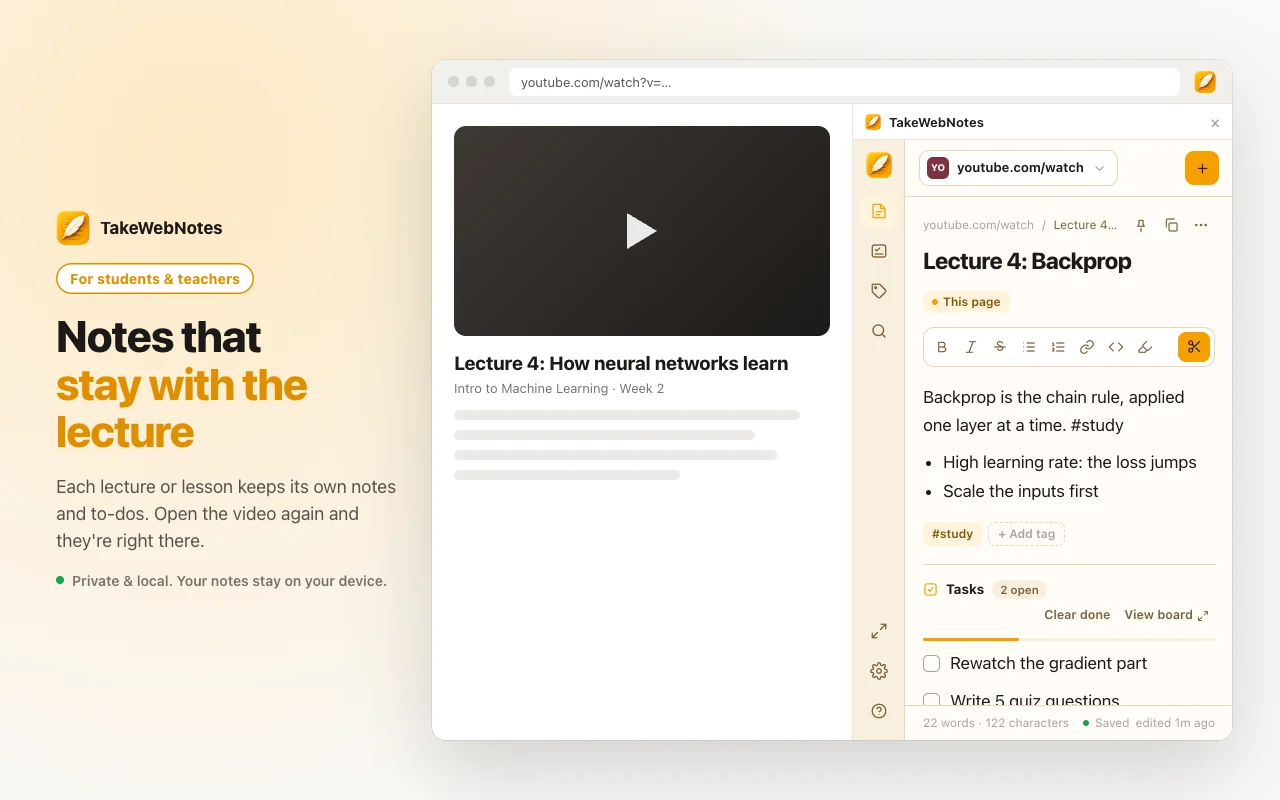
For students & teachers
Study notes that stay with the lecture
Write notes under every lecture video, course page or reading. Teachers keep lesson ideas and quiz questions with the video they came from. Open it again and they are right there.
 TakeWebNotes
 opens beside any website and keeps your notes, to-dos and clipped quotes with the page you wrote them on. Come back to the video, doc or article and they are right there.
Your notes stay on your device. No account, no tracking.
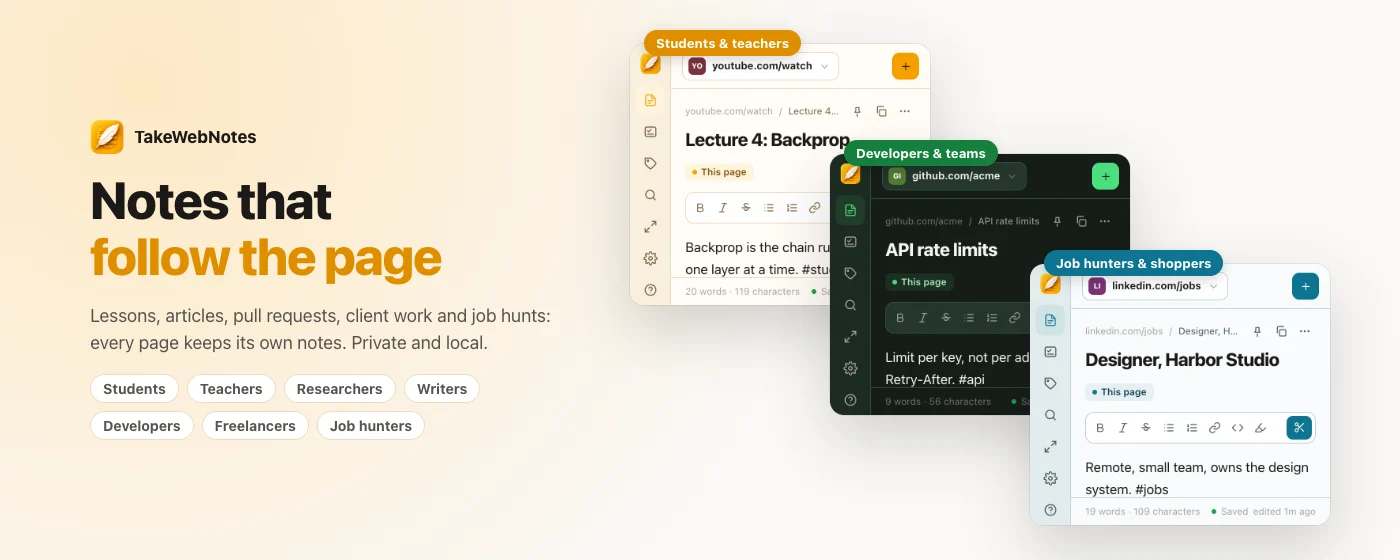
Lessons, articles, pull requests, client work and job hunts: each page keeps its own notes, right beside it.
For students & teachers
Write notes under every lecture video, course page or reading. Teachers keep lesson ideas and quiz questions with the video they came from. Open it again and they are right there.
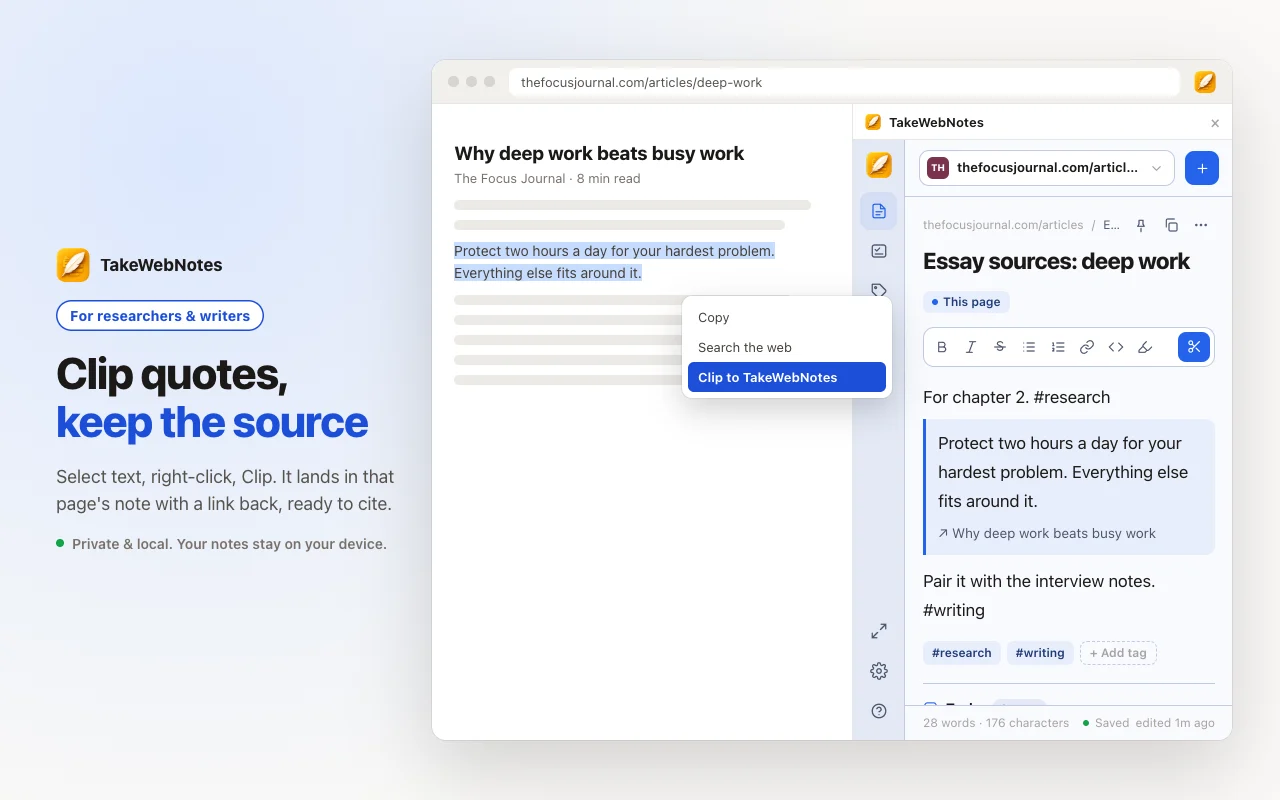
For researchers & writers
Select text, right-click and choose Clip to TakeWebNotes. The quote lands in that page’s note with a link back, ready to cite in your essay, article or thesis.
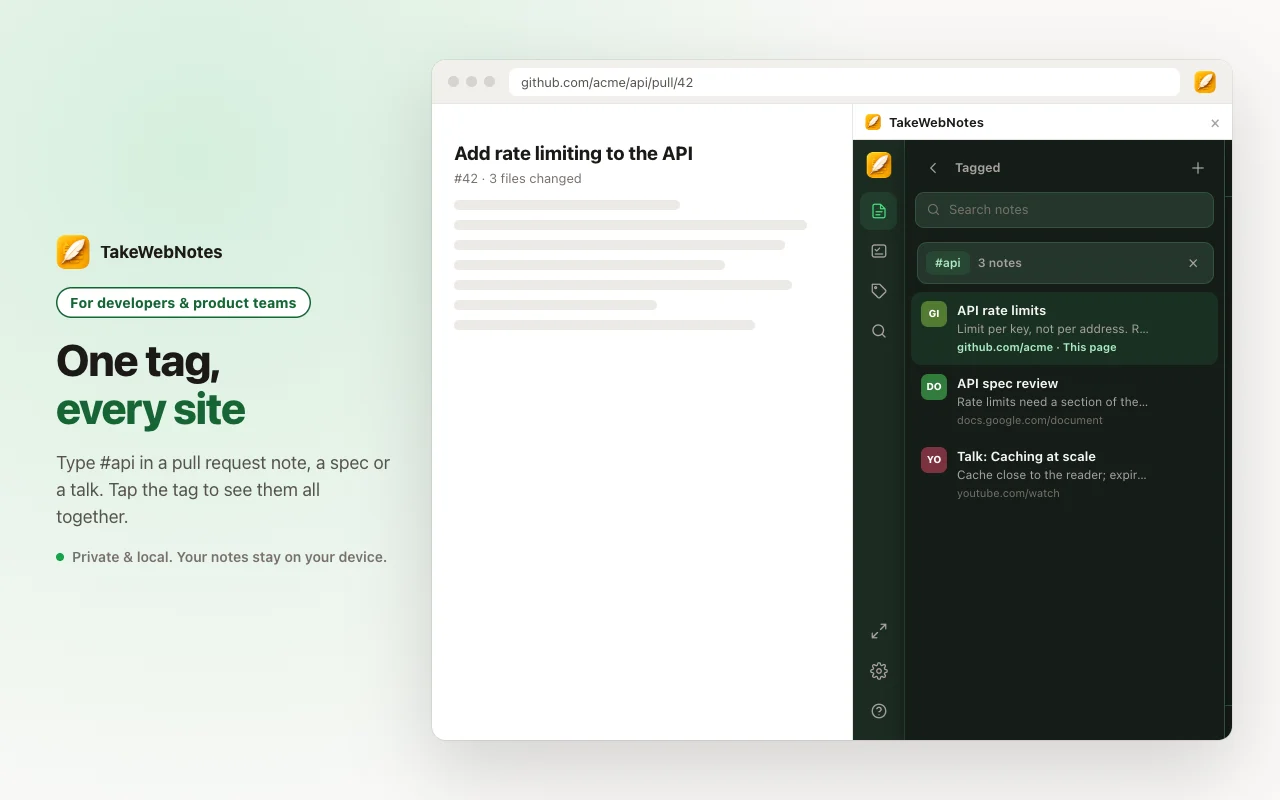
For developers & product teams
Type #api in a pull request note, a spec and a conference talk. Tap the tag to see all of them together, wherever you wrote them.
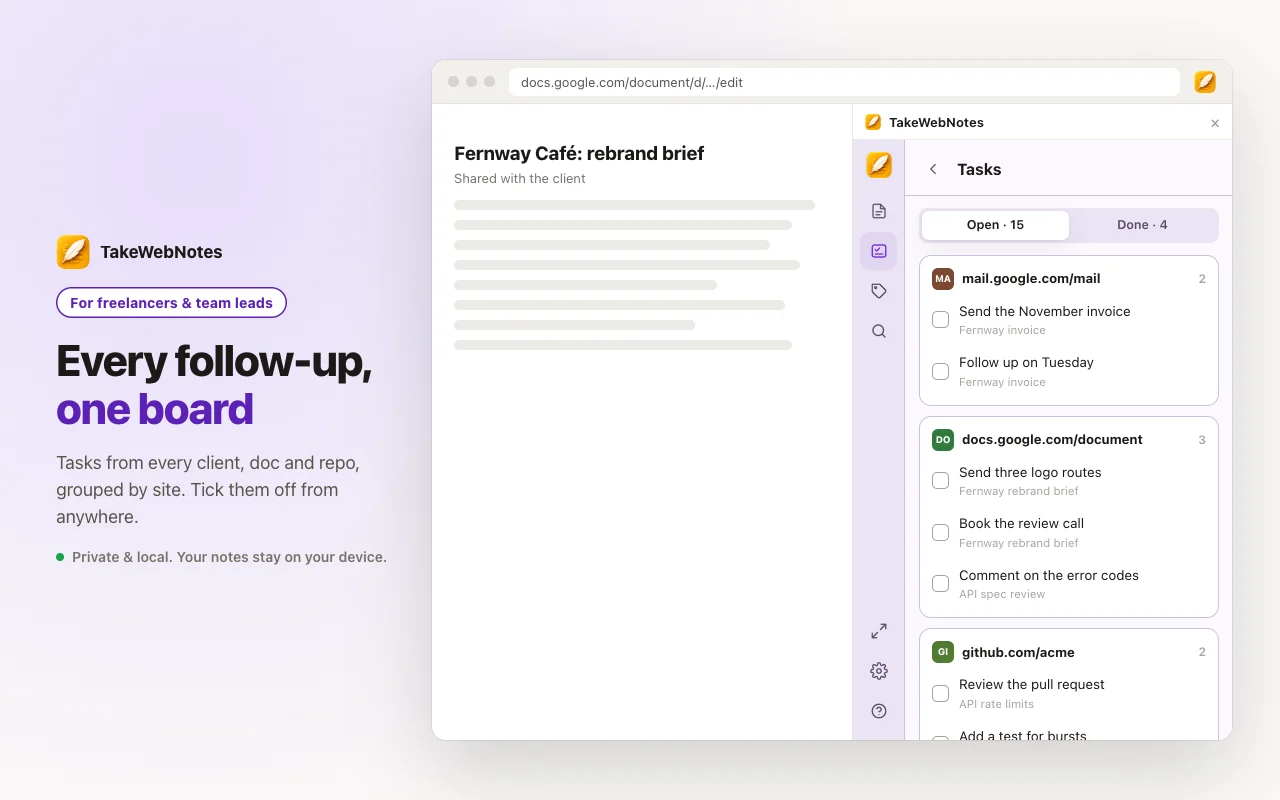
For freelancers & team leads
Tasks from every client email, brief and repository, grouped by site on one task board. Tick them off from anywhere.
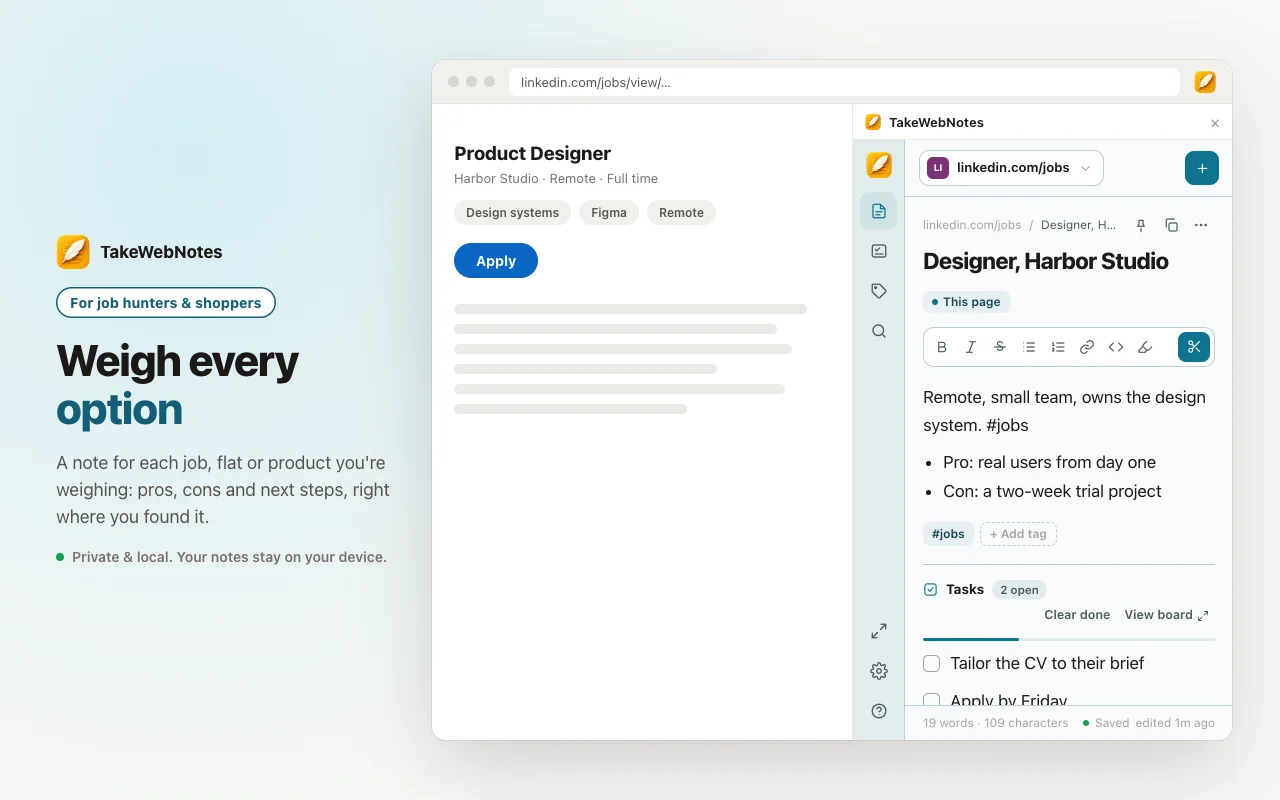
For job hunters & shoppers
Keep the pros, cons and next steps on each job listing, flat or product page, and decide with everything in front of you.
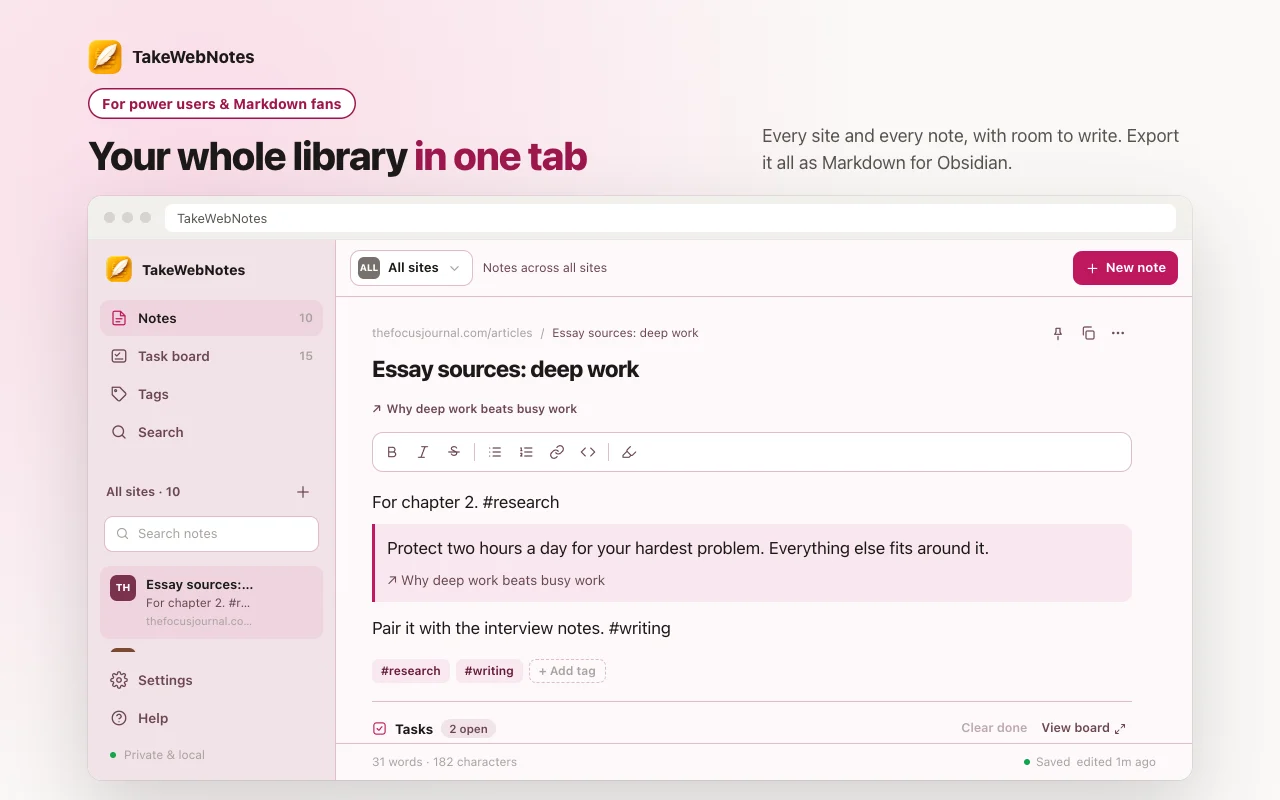
For power users & markdown fans
Open every site and every note in a full tab, with room to write. Export everything as Markdown in one .zip, ready for Obsidian.
A note remembers the page it was written on and opens first when you come back.
Right-click, the Clip button or Alt+Shift+C saves the quote with a link back.
Type #work in any note, then tap it to see every note with it.
Check-lists beside your notes, and every task in one place.
Meeting notes, bug reports, research, or a template of your own.
Bold, lists, links, code, text colour and highlight.
Find any note, task or tag across every site.
Markdown for one note or all of them in a .zip, and a backup file.
The colour tints the whole panel.
Yes. TakeWebNotes is free for Chrome and Firefox, with no account and no sign-up.
In your browser’s own storage on your device. They are never uploaded, and TakeWebNotes connects to no server. Settings has a backup button to save everything to a file.
A note remembers the page it was written on. Each video, doc or question keeps its own notes, and the site’s other notes are one tap away.
Select the text, then right-click and choose Clip to TakeWebNotes, or press Alt+Shift+C. The quote is saved in that page’s note with a link back.
Yes. Export everything as Markdown files in one .zip, or copy or download a single note as Markdown.
No. Updates keep every note, task and setting you already have.
Something else? TakeWebNotes support
Free for Chrome and Firefox. Installs in seconds, no sign-up.